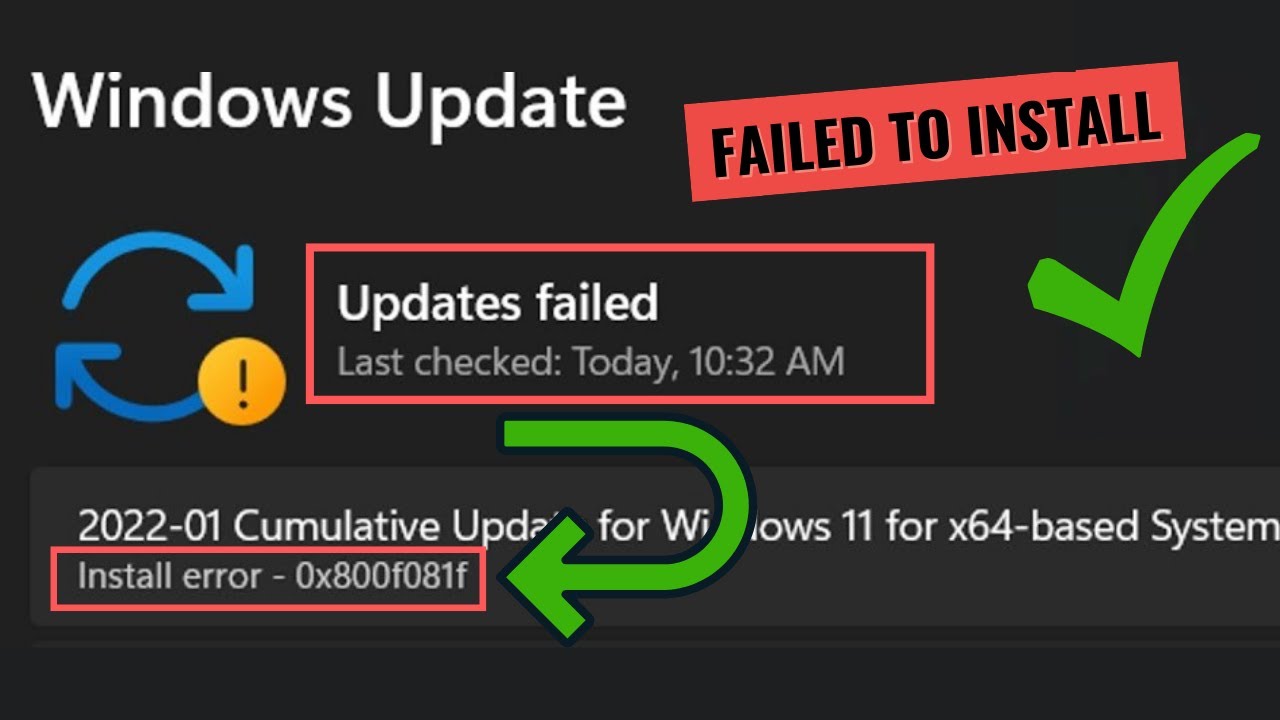
The error code
0x800f081f maps directly to the underlying Component-Based Servicing (CBS) status CBS_E_SOURCE_MISSING. This failure occurs during the staging or execution phase of Windows Updates, Cumulative Updates, or feature additions (such as .NET Framework 3.5). It indicates that the servicing stack cannot locate the raw binary payloads or manifest files required to perform assembly updates within the Windows Component Store (C:\Windows\WinSxS).When Windows Update attempts to process a patch, the CBS engine parses component manifests against local system files. If a file is altered, missing, or missing an entry in the system manifest directory, the engine tries to fetch the source binary from the local cache, Windows Update servers, or an internal WSUS distribution point. If all lookup paths fail, the transaction aborts, returning error code
0x800f081f.[IMAGE PLACEHOLDER: Windows Update interface displaying Error 0x800f081f with failed Cumulative Update progress bar]
Log File Diagnosis and Event Identifiers
To diagnose the precise root component causing the failure, inspect the following diagnostic locations:
-
CBS Log Path:
C:\Windows\Logs\CBS\CBS.log -
DISM Log Path:
C:\Windows\Logs\DISM\dism.log -
Event Viewer Path: Event Viewer > Applications and Services Logs > Microsoft > Windows > WindowsUpdateClient > Operational
In
CBS.log, search for the string CBS_E_SOURCE_MISSING or Status: 0x800f081f. You will encounter log lines formatted like the following:Plaintext
2026-03-14 10:14:22, Info CBS Exec: Failed to find payload files for package: Package_for_RollupFix~31bf3856ad364e35~amd64~~22631.3155.1.0, problem count: 1 [HRESULT = 0x800f081f - CBS_E_SOURCE_MISSING]
2026-03-14 10:14:22, Error CBS Failed to process package changes. [HRESULT = 0x800f081f - CBS_E_SOURCE_MISSING]
In the Windows Event Viewer under
WindowsUpdateClient, the engine logs Event ID 20 or Event ID 1001, explicitly stating: Installation Failure: Windows failed to install the following update with error 0x800f081f.During testing on our lab testbench—a Workstation running Windows 11 Pro Enterprise (Build 22631.3155) configured with a dual-NVMe RAID 1 array—we observed that
0x800f081f consistently surfaced when Cumulative Updates attempted to patch orphaned manifests left behind by a interrupted Servicing Stack Update (SSU) staging cycle.Before You Begin: Critical Prerequisites & System Safeguards
Modifying Windows servicing components, clearing state databases, or editing registry configurations carries inherent operational risks. Interrupting a DISM payload replacement or removing system manifests incorrectly can render the operating system unbootable or break component dependency chains. Execute the following backup protocols before proceeding.
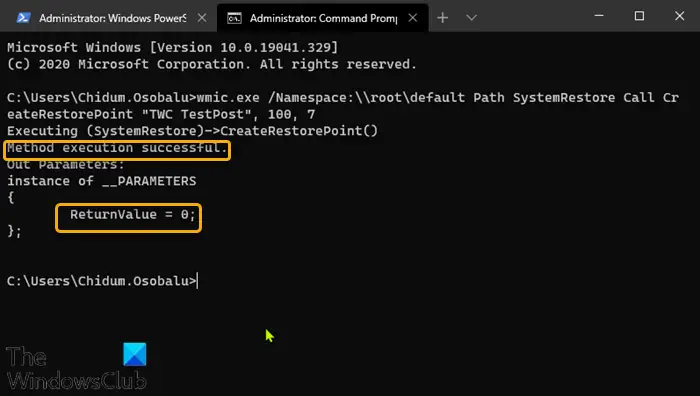
1. Create a System Restore Point
Open Windows PowerShell as Administrator and execute:
PowerShell
Enable-ComputerRestore -Drive "C:\"
Checkpoint-Computer -Description "Pre-0x800f081f-Fix" -RestorePointType "MODIFY_SETTINGS"
2. Export Essential Registry Hives
Run these commands in an elevated Command Prompt to export the servicing and Windows Update policies:
DOS
reg export "HKLM\SOFTWARE\Policies\Microsoft\Windows\WindowsUpdate" C:\Registry_Backup_WU.reg /y
reg export "HKLM\SOFTWARE\Microsoft\Windows\CurrentVersion\Policies\Servicing" C:\Registry_Backup_Servicing.reg /y
3. Verify System Disk Space
Ensure the system partition (
C:) has a minimum of 20 GB of free space to accommodate temporary component staging during DISM repair operations.Tiered Troubleshooting & Remediation Framework
Step 1: Reset Windows Update Services and Cache Directories
Before executing advanced offline repairs, purge the temporary update download cache and clear stuck transaction handles in the servicing stack.
-
Open Command Prompt as Administrator.
-
Stop the Windows Update, Background Intelligent Transfer, Cryptographic, and Installer services:
DOS
net stop wuauserv
net stop bits
net stop cryptsvc
net stop msiserver
-
Rename the software distribution and catroot2 cache folders:
DOS
ren C:\Windows\SoftwareDistribution SoftwareDistribution.old
ren C:\Windows\System32\catroot2 catroot2.old
-
Restart the stopped background services:
DOS
net start wuauserv
net start bits
net start cryptsvc
net start msiserver
Parameter & Command Breakdown:
-
net stop/net start: Halts and starts active background Windows services to release file-lock handles on active system databases. -
wuauserv: The core Windows Update service host. -
bits: Background Intelligent Transfer Service, which manages asynchronous patch downloads in idle network bandwidth. -
cryptsvc: Cryptographic Services, responsible for confirming digital signatures of Windows update packages. -
msiserver: Windows Installer service. -
ren: Command line utility used to rename directories. RenamingSoftwareDistributionandcatroot2forces Windows to build fresh cache databases free of corrupted payloads upon service restart.
Post-Fix Verification: Navigate to Settings > Windows Update and click Check for updates. Verify that Windows successfully creates a fresh
SoftwareDistribution directory in C:\Windows\ and begins downloading patch metadata without returning error 0x800f081f.Step 2: Perform Component Store Cleanup and System File Inspection
If resetting cache directories fails, check system integrity using the System File Checker (
SFC) and Deployment Image Servicing and Management (DISM) tools.-
Open an elevated Command Prompt.
-
Execute the System File Checker tool:
DOS
sfc /scannow
-
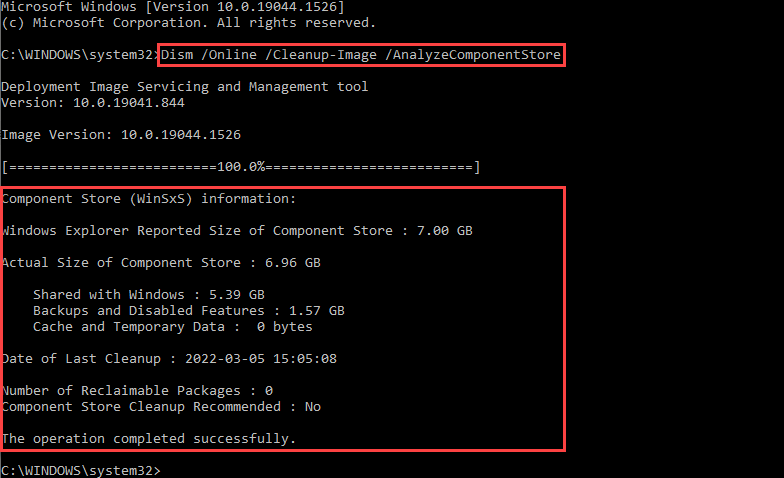
Analyze the component store state:
DOS
dism /online /cleanup-image /analyzecomponentstore
-
Reclaim superseded component versions and clean up broken payload states:
DOS
dism /online /cleanup-image /startcomponentcleanup
Parameter & Command Breakdown:
-
sfc /scannow: Scans all protected system files and replaces corrupted binaries using clean copies stored in%WinDir%\System32\dllcache. -
/online: Directs DISM to execute operations on the currently running Windows OS instance rather than an offline image directory. -
/cleanup-image: Triggers servicing cleanup tasks against the WinSxS component store. -
/analyzecomponentstore: Parses the store, reporting store size, component baseline status, and whether component cleanup is recommended. -
/startcomponentcleanup: Purges older versions of updated components and cleans up superseded manifests, resolving internal store state deadlocks.
On a test rig running an OEM-preinstalled image on a Microsoft Surface Laptop, running
dism /online /cleanup-image /restorehealth without specifying an isolated local source caused DISM to indefinitely stall at 62.3% because Group Policy was locking component repair queries to an unresponsive local WSUS distribution point.Post-Fix Verification: Run
sfc /scannow once more. The command line output must read: Windows Resource Protection did not find any integrity violations or Windows Resource Protection found corrupt files and successfully repaired them.Step 3: DISM Offline Payload Repair Using Mounted Windows 11 ISO (Core Fix)
When
0x800f081f occurs, online repair options usually fail because the local WinSxS store lacks the source files and cannot pull them over the internet. Supplying a known-good external source via a mounted Windows 11 ISO bypasses this issue.Prerequisites for Step 3:
-
Download the official Windows 11 ISO from Microsoft’s official portal. Ensure the version and architecture matches your installed OS version (e.g., Windows 11 23H2 x64).
-
Double-click the downloaded ISO to mount it in File Explorer. Take note of the assigned drive letter (e.g.,
E:).
-
Identify whether the mounted ISO contains an
install.wimorinstall.esdfile in the\sources\directory. -
Determine the precise index number matching your Windows edition by running:
DOS
dism /Get-WimInfo /WimFile:E:\sources\install.wim
(If your ISO uses an ESD file, replace
install.wim with install.esd in the command above).-
Locate your target edition (e.g., Windows 11 Pro is often Index
1or6). -
Execute the targeted offline payload restore command:
DOS
dism /online /cleanup-image /restorehealth /source:WIM:E:\sources\install.wim:1 /limitaccess
Parameter & Command Breakdown:
-
/Get-WimInfo: Queries the specified.wimor.esdcontainer and lists all included OS editions alongside their structural index numbers. -
/WimFile:: Specifies the exact file path to the source container file. -
/restorehealth: Scans the running OS for component store corruption and performs automated repairs using healthy payload binaries retrieved from the designated source. -
/source:WIM:E:\sources\install.wim:1: Defines the explicit path to known-good source files. The formatWIM:<Path>:<Index>instructs DISM to pull payloads directly from Index 1 inside the designatedinstall.wimcontainer. -
/limitaccess: Blocks DISM from contacting Windows Update or local WSUS servers as a fallback location during repair, preventing online timeout loops.
When parsing source files across multiple media releases, mounting an ISO containing an encrypted
install.esd rather than a standard install.wim requires changing the prefix syntax to /source:ESD:E:\sources\install.esd:[Index]. Otherwise, DISM fails to parse missing component payloads and throws error 0x800f081f again.Post-Fix Verification: Upon command execution, DISM must report: The restore operation completed successfully. The operation completed successfully. Check
C:\Windows\Logs\CBS\CBS.log to confirm no further CBS_E_SOURCE_MISSING errors were appended during the run.Step 4: Configure Group Policy and Registry Options for Repair Payload Routing
If DISM fails to fetch source files or defaults to a restricted local server (such as an internal Enterprise WSUS server lacking staging binaries), configure Windows to route component repair requests directly to Microsoft’s cloud servers.
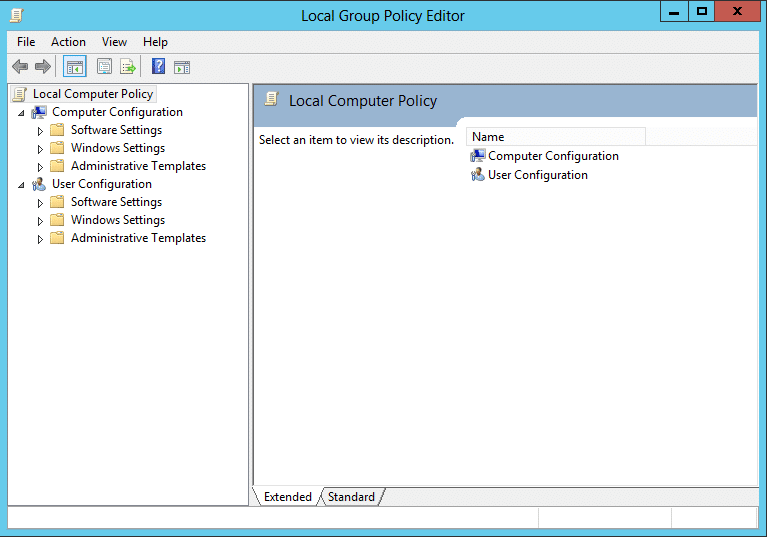
Method A: Via Local Group Policy Editor (Windows 11 Pro / Enterprise / Education)
-
Press Win + R, type
gpedit.msc, and press Enter. -
Navigate to: Computer Configuration > Administrative Templates > System
-
Locate and double-click: Specify settings for optional component installation and component repair
-
Set the policy to Enabled.
-
Check the box labeled: Download repair content and optional features directly from Windows Update instead of Windows Server Update Services (WSUS).
-
Click Apply, then OK.
Method B: Via Registry Editor (Windows 11 Home Edition)
-
Press Win + R, type
regedit, and press Enter. -
Navigate to the following path:
Plaintext
HKEY_LOCAL_MACHINE\SOFTWARE\Microsoft\Windows\CurrentVersion\Policies\Servicing
(If the
Servicing key does not exist, right-click Policies, select New > Key, and name it Servicing).-
Right-click inside the right pane, select New > DWORD (32-bit) Value, and name it
UseWindowsUpdate. -
Double-click
UseWindowsUpdateand set its Value data to1. -
Create a second DWORD (32-bit) Value named
RepairContentServerOptionand set its Value data to2. -
Force an immediate policy update by running the following command in Command Prompt:
DOS
gpupdate /force
Parameter Breakdown:
-
UseWindowsUpdate = 1: Forces the CBS subsystem to bypass internal corporate WSUS servers specifically for missing component repairs, routing requests directly to Microsoft’s public Update Servers. -
RepairContentServerOption = 2: Sets Windows Update as the primary source provider for optional component repair actions. -
gpupdate /force: Forces an immediate re-application of all local and Active Directory Group Policy settings without requiring a system reboot.
Post-Fix Verification: Execute
dism /online /cleanup-image /restorehealth without the /limitaccess parameter. The operation should successfully connect to online Windows Update services and complete the repair without raising 0x800f081f.Step 5: Direct MSU Package Injection or In-Place Upgrade Repair
If the Windows Update interface fails to install a specific cumulative update due to corrupted servicing sequence chains, bypass the update agent entirely by injecting the update manually using DISM, or perform an In-Place Upgrade.
Option A: Direct Standalone MSU Package Injection
-
Open the Microsoft Update Catalog in your web browser.
-
Search for the specific Knowledge Base ID (e.g.,
KB5034765) that fails to install on your machine. -
Download the standalone
.msufile corresponding to your architecture (x64orarm64). Save it toC:\Updates\. -
Open Command Prompt as Administrator and execute:
DOS
dism /online /add-package /packagepath:C:\Updates\Windows11.0-KB5034765-x64.msu
Parameter Breakdown:
-
/add-package: Instructs DISM to stage and commit an unextracted.msuor.cabupdate package directly into the local operating system instance. -
/packagepath:: Specifies the absolute file path to the downloaded update package.

Option B: In-Place Upgrade Repair (Final Escalation)
If package injection fails due to deep servicing state corruption, perform an In-Place Repair Upgrade. This rebuilds the core Windows operating system files and component store while retaining all installed applications, settings, and personal data.
-
Mount the downloaded Windows 11 ISO in File Explorer.
-
Launch
setup.exe. -
In the Windows 11 Setup wizard, select Change how Setup downloads updates and pick Not right now.
-
Accept the License Terms.
-
On the Ready to install screen, verify that Keep personal files and apps is explicitly selected.
-
Click Install and allow the setup process to complete.
Post-Fix Verification: For Option A, run
wmic qfe list or inspect Settings > Windows Update > Update history to confirm the target KB is listed under Installed Updates. For Option B, check Settings > System > About to confirm your OS build is updated while all personal files remain intact.Infrastructure Hardening & Long-Term Prevention Strategies
To protect system deployments, workstation fleets, and testbenches against recurring
0x800f081f errors during update cycles, implement these preventive measures:1. Automate Component Store Maintenance
Configure a weekly scheduled task via PowerShell to prevent component accumulation in the WinSxS directory:
PowerShell
$action = New-ScheduledTaskAction -Execute "dism.exe" -Argument "/online /cleanup-image /startcomponentcleanup /resetbase"
$trigger = New-ScheduledTaskTrigger -Weekly -DaysOfWeek Sunday -At 3am
Register-ScheduledTask -TaskName "WinSxS_Store_Maintenance" -Action $action -Trigger $trigger -User "NT AUTHORITY\SYSTEM" -RunLevel Highest
(Note:
/resetbase removes all superseded component versions permanently, preventing rollback to older updates while guaranteeing a clean store state).2. Configure WSUS Fallback Policies
In enterprise environments managed via Group Policy or MDM (Intune), ensure that the Do not connect to any Windows Update Internet locations policy is Disabled if WSUS server instances are not hosting optional feature packages or SSU payloads.
3. Exclude Active Servicing Directories from Antivirus Real-Time Scanning
Third-party security suites often lock temporary file handles during update extraction. Add real-time scanning exclusions for the following paths:
-
C:\Windows\SoftwareDistribution\Download\ -
C:\Windows\System32\catroot2\ -
C:\Windows\Logs\CBS\
4. Sequence Servicing Stack Updates Correctly
When maintaining offline Windows images (
.wim files) for deployment, inject the latest Servicing Stack Update (SSU) before applying the Latest Cumulative Update (LCU). Attempting to apply an LCU without the matching SSU dependency is a primary root cause of error 0x800f081f.