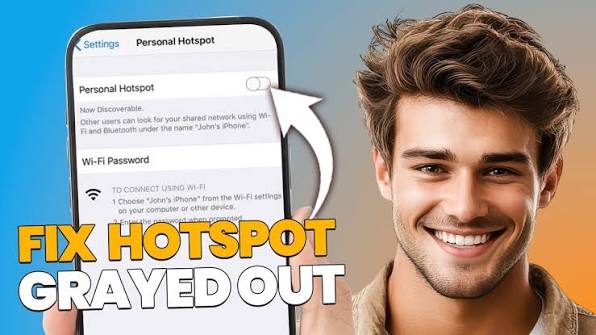
Personal Hotspot option failures occur when the iOS CommCenter framework fails to verify tethering entitlement permissions with your cellular carrier. If your line’s provisioning bundle lacks the necessary Tethering Service Order Code (SOC), or if your APN configuration settings become corrupted following an iOS update, the system either completely removes Personal Hotspot from Settings or grays out the toggle. Other common causes include disabled background cellular data connections, active Content & Privacy Restrictions, corrupted Mobile Device Management (MDM) profiles, or outdated network configuration bundles.
Method 1: Re-establishing Cellular Entitlements and Tethering APN Parameters
The first step in resolving a missing or grayed-out Personal Hotspot menu is ensuring that cellular data routing is active, refreshing the carrier configuration bundle, and manually inputting tethering APN credentials if your carrier permits custom APN edits.
Step 1: Force a Cellular Network Re-Registration
Personal Hotspot cannot initialize if cellular data is turned off, operating on a degraded registration token, or restricted to a non-data voice state.
-
Open Settings on your iPhone.
-
Ensure that Cellular Data (or Mobile Data) under Cellular is toggled On.
-
Toggle Airplane Mode to On, wait 15 seconds, and toggle it back to Off.
-
If your iPhone uses Dual SIM or eSIM, go to Settings > Cellular > Cellular Data, select your active data line, and verify that Allow Cellular Data Switching is configured appropriately for your connection setup.
Step 2: Force a Carrier Configuration Bundle Update
Carriers update their configuration files to maintain tethering entitlements and update APN routing tables on the iPhone.
-
Connect your device to an active Wi-Fi or cellular network.
-
Navigate to Settings > General > About.
-
Hold on this screen for 20 to 30 seconds.
-
If an updated configuration bundle is available, a prompt titled Carrier Settings Update will appear. Tap Update to install it immediately.
Step 3: Populate the Personal Hotspot APN Configuration
If your carrier requires manual APN entries (common with MVNOs such as Mint Mobile, Cricket, Ultra Mobile, or international prepaid SIMs), a blank Personal Hotspot APN field will completely hide the Hotspot option.
-
Open Settings > Cellular (or Mobile Service).
-
Tap Cellular Data Network (or Mobile Data Network).
-
Scroll down to the PERSONAL HOTSPOT section at the bottom.
-
In the APN field, enter the exact APN text provided by your carrier (for example,
pcweb.vzwrls.com,wholesale,sp.mb.com, orinternet). -
Enter the Username and Password if required by your carrier. Leave them blank if not specified.
-
Return to the main Settings menu, close the Settings app from the App Switcher, and re-open Settings to check if Personal Hotspot now appears.
Method 2: Clearing iOS System Restrictions, VPN Overlays, and Configuration Profiles
If Personal Hotspot is visible but grayed out (disabled), the issue is typically caused by active Content & Privacy Restrictions, conflicting VPN configurations, or MDM profiles installed by workplace or school networks.
Step 1: Disable Screen Time Content & Privacy Restrictions
iOS Screen Time can restrict changes to cellular data settings, locking down the Personal Hotspot toggle.
-
Open Settings > Screen Time.
-
Scroll down and tap Content & Privacy Restrictions.
-
If enabled, locate the ALLOW CHANGES TO: section and tap Cellular Data Changes.
-
Ensure it is set to Allow.
-
Alternatively, temporarily toggle Content & Privacy Restrictions at the top of the screen to Off to test if the grayed-out state releases.
Step 2: Remove Custom APN Profiles and VPN Configuration Overlays
Enterprise profiles or secure VPN tunnel profiles can enforce strict policies that block local device routing and internet sharing protocols.
-
Navigate to Settings > General > VPN & Device Management.
-
Tap any active VPN profile, select Delete VPN, and confirm.
-
Under the CONFIGURATION PROFILE or MOBILE DEVICE MANAGEMENT section, select any installed third-party profiles that you no longer need, tap Remove Profile, enter your device passcode, and confirm removal.
-
Restart your device after removing profiles.
Method 3: Resetting Network Stack, Hard Reboot, and Carrier Entitlement Re-Provisioning
If Personal Hotspot remains missing or grayed out after configuration checks, the core cellular network stack must be cleared, or your carrier must re-provision tethering permissions on your mobile account.
Step 1: Execute a Full Network Settings Reset
Resetting network settings forces iOS to restore factory default carrier payloads, clear corrupted network caches, and re-initialize cellular interfaces.
-
Open Settings > General > Transfer or Reset iPhone.
-
Tap Reset at the bottom of the screen.
-
Select Reset Network Settings.
-
Enter your device lock screen passcode when prompted.
-
Tap Reset Network Settings on the confirmation menu. Your iPhone will restart automatically.
Step 2: Perform a Forced Hardware Restart
A forced restart re-initializes the iOS kernel and low-level telephony background processes (CommCenter).
-
Press and quickly release the Volume Up button.
-
Press and quickly release the Volume Down button.
-
Press and hold the Side button (Power button).
-
Continue holding the Side button past the “Slide to power off” screen, releasing it only when the Apple logo appears on screen.
Step 3: Verify Account Provisioning and Request Carrier Entitlement Reset
If all on-device steps fail, the carrier’s network core is denying tethering entitlement access to your device.
-
Contact your cellular provider’s technical support department.
-
Request the representative to verify if Personal Hotspot / Tethering is explicitly enabled on your current rate plan.
-
Ask the technician to perform a “Carrier Entitlement Refresh” or “Data Provisioning Reset” on your line.
-
Once completed on the carrier’s backend, turn your iPhone off for 3 minutes, then turn it back on to trigger a clean cellular registration cycle.
Following these procedures restores tethering permissions, resolves missing APN entries, and enables the Personal Hotspot interface in iOS Settings.