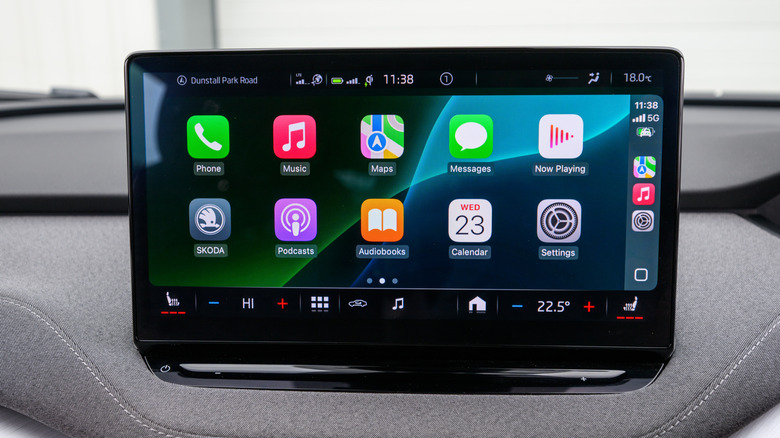
Apple CarPlay random disconnections occur when the underlying communication session between the iPhone and the vehicle’s head unit suffers an unhandled packet drop or buffer overflow. For wired connections, this breakdown is driven by physical signal degradation over the USB bus, where minor voltage drops across worn data pins break the multiplexed audio/video stream. For wireless CarPlay, disconnections occur when environmental radio frequency (RF) interference corrupts the 5 GHz Wi-Fi direct-link socket or when Bluetooth handshakes fail during dynamic channel switching. Primary technical causes include corrupted CarPlay vehicle pairing profiles, aggressive iOS Location Services background queries, outdated head unit firmware, or active VPN tunnel extensions interrupting local network socket routes.
Method 1: Basic Physical Connection Refresh, Cable Protocol Isolation, and Radio Reset
The initial phase of resolving CarPlay dropouts involves removing hardware signal bottlenecks, clearing localized RF interference, and resetting active wireless interfaces.
Step 1: Inspect Physical USB Infrastructure and Clean I/O Connectors
Wired CarPlay uses high-bandwidth data protocols that are sensitive to impedance changes caused by physical debris or sub-spec cabling.
Unplug the cable from both the iPhone and the vehicle’s dedicated media port (marked with a smartphone or USB icon; avoid charging-only ports). Inspect the iPhone’s Lightning or USB-C port under bright light and use a non-conductive wooden or plastic pick to extract compacted lint or debris from around the pin housing. Replace third-party, worn, or non-certified cables with an official Apple MFi-certified cable or high-speed USB 3.1/USB-C data cable under 3.3 feet (1 meter) in length. Eliminate the use of magnetic adapters, multi-port splitters, or aftermarket wireless CarPlay dongles during troubleshooting.
Step 2: Cycle iPhone Wireless Radios via Control Center and Settings
Wireless CarPlay relies on Bluetooth to establish the initial authentication handshake, after which it shifts data transfer to a private 5 GHz Wi-Fi direct network. Toggling these radios resets the local socket state.
-
Open Settings on your iPhone.
-
Select Wi-Fi, toggle the main Wi-Fi switch to Off, wait 10 seconds, and toggle it back to On.
-
Select Bluetooth, toggle the main Bluetooth switch to Off, wait 10 seconds, and toggle it back to On.
-
Avoid cycling radios exclusively through the iOS Control Center, as the Control Center toggles disconnect active accessories without fully tearing down and rebuilding underlying network stacks.
Step 3: Execute a Soft Reset on the Vehicle Infotainment Head Unit
Vehicle head units run embedded operating systems (such as QNX, Linux, or Automotive Android) that accumulate volatile memory fragments over prolonged operation.
Perform a forced soft reset of your vehicle’s infotainment system while the vehicle is parked. For Honda vehicles, press and hold the Power / Volume knob for 10 seconds until the reboot prompt displays. For Ford (Sync 3/4), hold Power + Seek Right on the physical center console for 10 seconds. For Hyundai/Kia, use a paperclip to press the dedicated Reset pinhole button near the volume dial. For Volkswagen/Audi, press and hold the Power button for 15 seconds until the screen turns black and displays the brand logo.
Method 2: Advanced Profile Purging, Location/Privacy Tuning, and VPN Tunnel Isolation
When physical connections and radio cycles fail to stabilize CarPlay, the issue typically resides in corrupted vehicle configuration keys, location-based wireless frequency switching, or background network routing security overlays.
Step 1: Purge and Re-pair Vehicle Configurations in iOS CarPlay Settings
Corrupted pairing profiles in the iPhone’s keychain can cause repeated authentication drops during drive state changes.
-
Open Settings > General > CarPlay.
-
Tap your vehicle’s name under the My Cars list.
-
Select Forget This Car and confirm by tapping Forget.
-
Open Settings > Bluetooth, locate your vehicle’s Bluetooth name under My Devices, tap the Info icon (letter “i” in a circle), and select Forget This Device.
-
Restart your iPhone.
-
Connect the iPhone back to the vehicle via USB cable or initiate the wireless setup wizard on the head unit to establish a fresh pairing profile from scratch.
Step 2: Configure Location Services and System Customization Preferences
Frequent location tracking queries triggered by third-party navigation apps can cause high CPU spikes and Wi-Fi channel scans, dropping the wireless CarPlay video buffer.
-
Open Settings > Privacy & Security > Location Services.
-
Scroll down and tap System Services.
-
Locate Setting Time Zone and Significant Locations, and evaluate if toggling them reduces background RF polling.
-
Return to Settings > General > CarPlay, select your car, and ensure Allow CarPlay While Locked is toggled to On so the projection daemon is not suspended when the iPhone screen turns off.
Step 3: Remove Active VPN Profiles and Network Tunnel Extensions
Virtual Private Networks (VPNs) redirect local network traffic through virtual adapters (NEVPNManager). Because wireless CarPlay operates as a local Wi-Fi peer-to-peer network, VPN routing rules often drop CarPlay data packets.
-
Open Settings > General > VPN & Device Management.
-
Tap VPN under the VPN section.
-
Tap the Info icon next to any active or disconnected VPN profiles and tap Delete VPN.
-
Open the dedicated app for any security software installed on your device (e.g., Cloudflare 1.1.1.1, AdGuard, or ExpressVPN) and disable background monitoring features while using CarPlay.
Method 3: Deep System Reconfiguration, Network Stack Clearing, and Baseband Firmware Recovery
Persistent CarPlay dropouts that survive profile removals and cable replacements indicate deeper corruption within the iOS networking stack, corrupted baseband binaries, or outdated vehicle head unit software.
Step 1: Execute a Full Network Settings Reset
Resetting iOS network settings clears all saved Wi-Fi networks, Bluetooth pairing profiles, cellular routing tables, and preferred access point lists, forcing iOS to rebuild its network stack from defaults.
-
Open Settings > General > Transfer or Reset iPhone.
-
Tap Reset at the bottom of the display.
-
Select Reset Network Settings.
-
Enter your device lock screen passcode when prompted.
-
Tap Reset Network Settings on the red confirmation menu to initiate the system restart.
Step 2: Perform a Hard Forced System Restart
A forced restart cuts residual power to the iPhone’s RAM and reinitializes the low-level wireless baseband controllers without modifying personal files or user data.
-
Press and quickly release the Volume Up button.
-
Press and quickly release the Volume Down button.
-
Press and hold the Side button (Power button).
-
Continue holding the Side button through the “Slide to power off” screen, releasing it only when the Apple logo appears on screen.
Step 3: Update Vehicle Head Unit Firmware and Reinstall iOS via Recovery Mode
If CarPlay continues to drop randomly, the vehicle’s infotainment system firmware may contain a known USB/Wi-Fi driver memory leak, or the iOS update on the phone may have experienced a partial installation failure.
-
Update Vehicle Firmware: Check your car manufacturer’s official portal or mobile app for available infotainment software updates. Many modern vehicles support Over-The-Air (OTA) updates via Settings > System > System Updates on the car display while connected to home Wi-Fi.
-
Reinstall iOS Baseband Firmware: Connect your iPhone to a computer (Mac Finder or Windows PC via Apple Devices app/iTunes). Place the device into Recovery Mode (Press Volume Up, press Volume Down, hold Side button until the “Connect to Computer” screen appears). Select Update on your computer prompt to download and reinstall a clean copy of the latest iOS build without wiping user data.
Executing these technical procedures clears corrupted wireless authentication tokens, restores physical I/O signal integrity, and resolves random Apple CarPlay disconnections.