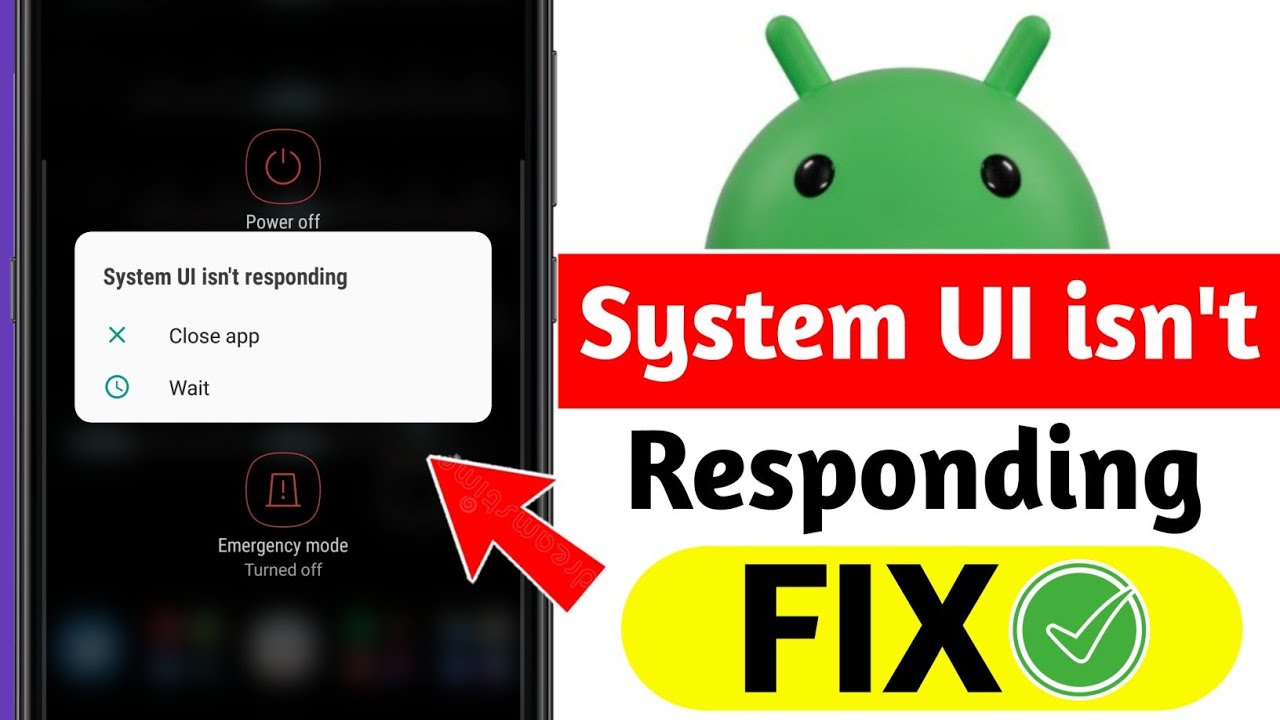
The “System UI is not responding” error on Samsung Galaxy devices occurs when the primary graphical interface daemon (com.android.systemui) experiences a main-thread lockup or unhandled runtime exception. System UI governs essential visual components including the notification shade, quick settings panel, navigation bar, lock screen, and gesture overlay. On Samsung devices running One UI, this crash is primarily caused by corrupted system cache files following a major firmware update, conflicting lock screen customization modules (such as Samsung Good Lock / LockStar), low available system memory (RAM) triggered by background app leaks, or improper overlay rendering from third-party themes and launchers.
Method 1: Basic System Reset, Service Optimization, and Cache Flush
The initial stage of resolving System UI crashes involves clearing volatile memory, flushing corrupted application caches, and disabling conflicting user interface overlays.
Step 1: Execute a Forced Memory Dump and Restart
A standard power-down requires user interface input, which is impossible during an active System UI freeze. Performing a hardware-level forced reboot dumps volatile RAM and forces the One UI system daemon to initialize cleanly.
Press and hold the Volume Down button and the Power / Side key simultaneously for at least 10 to 15 seconds. Continue holding both keys until the screen turns completely black and the Samsung Galaxy boot logo appears. Release the keys and allow the device to boot into the operating system normally.
Step 2: Clear Application Cache for System UI and Samsung One UI Home
Corrupted layout cache files within the home launcher or system UI service can trigger continuous loop crashes during screen rendering.
-
Navigate to Settings > Apps.
-
Tap the Filter and sort icon (located next to Your apps) and switch the toggle for Show system apps to On, then tap OK.
-
Scroll down or search for System UI.
-
Tap System UI, select Force stop, and confirm by tapping OK.
-
Tap Storage, then tap Clear cache in the bottom right corner.
-
Return to the app list, locate One UI Home, select Storage, and tap Clear cache.
Step 3: Boot into Safe Mode to Isolate Third-Party Overlay Interference
Third-party launchers, custom icon packs, widget applications, and screen overlay tools can alter System UI rendering threads and cause fatal exceptions.
-
Press and hold the Power / Side key and Volume Down button until the power menu appears on screen.
-
Touch and hold the Power off icon on the screen until the Safe mode prompt displays.
-
Tap Safe mode to restart the device.
-
While in Safe Mode (indicated by the “Safe mode” watermark in the bottom-left corner), observe device stability. If the error disappears, uninstall recently downloaded launchers, widgets, or lock screen tools via Settings > Apps.
-
Restart the device normally to exit Safe Mode.
Method 2: Advanced System Repair, Cache Partition Wipe, and Developer Options Tuning
When basic cache flushes fail, the issue typically stems from broken dalvik-cache entries in the system partition or misconfigured hardware acceleration settings within One UI.
Step 1: Wipe System Cache Partition via Recovery Mode
Wiping the system cache partition deletes non-user temporary system files generated across One UI system updates without erasing personal data, photos, or apps.
-
Turn off your Samsung Galaxy device completely.
-
Connect the phone to a computer or USB-C earphones using a official USB cable (required to trigger recovery mode on Android 11+ / One UI 3.0 and newer).
-
Press and hold the Volume Up button and Side key / Power button simultaneously.
-
Release both buttons only when the Android Recovery screen appears.
-
Use the Volume Down button to navigate down to Wipe cache partition.
-
Press the Power button to select it.
-
Navigate down to Yes using the Volume Down button and press the Power button to confirm.
-
Once the process completes, ensure Reboot system now is highlighted and press the Power button.
Step 2: Disable Hardware Acceleration Overlays and Adjust Window Animation Scales
Lagging UI thread rendering can cause the operating system to misinterpret slow frame generation as an application unresponsiveness (ANR) error. Disabling hardware overlays forces the GPU to manage screen composition.
-
Open Settings > About phone > Software information.
-
Tap Build number continuously seven times until the notification “Developer mode has been turned on” appears.
-
Return to the main Settings menu and scroll down to select Developer options.
-
Scroll down to the Drawing section and set Window animation scale, Transition animation scale, and Animator duration scale from 1x down to 0.5x or Animation off.
-
Scroll down to the Hardware accelerated rendering section and toggle Disable HW overlays to On (forces the system to always use the GPU for screen rendering).
Step 3: Execute Android Debug Bridge (ADB) System Package Cleanup
If a desktop computer is available, you can use ADB commands to force re-index system packages and reset the System UI runtime configuration without wiping your personal files.
Connect the Samsung device to your computer with USB debugging enabled in Developer options. Open a terminal or command prompt window and check connection status:
adb devices
Once recognized, execute the following shell commands sequentially to force clear the System UI package state and re-compile system bytecode:
adb shell am force-stop com.android.systemui
adb shell pm clear com.android.systemui
adb shell cmd package compile -m speed -a
Disconnect the phone from the computer and restart the device to apply the bytecode optimizations.
Method 3: Deep System Reconfiguration, Module Reset, and Firmware Recovery
Persistent System UI failures that survive cache clears indicate deeper corruption within system customization frameworks (Good Lock), system memory allocations, or core One UI software binaries.
Step 1: Reset Samsung Good Lock and Theme Park Customization Modules
Samsung’s Good Lock suite (specifically QuickStar, LockStar, and Theme Park) directly hooks into the com.android.systemui binary. Corrupted module configurations frequently break system UI layout processes.
-
Navigate to Settings > Apps.
-
Locate and select Good Lock (as well as installed modules like LockStar, QuickStar, or NavStar).
-
Tap Storage, then tap Clear data and confirm with Delete.
-
Open Settings > Themes (Samsung Themes).
-
Tap Menu (three lines in bottom right) > My stuff.
-
Select the default Default theme and apply it to remove third-party system-wide overrides.
Step 2: Reset All System Preferences
Resetting app preferences restores default permissions, background data restrictions, and notification configurations for all system daemons without deleting user data.
-
Open Settings > Apps.
-
Tap the three dots icon in the top right corner.
-
Select Reset app preferences.
-
Tap Reset on the confirmation pop-up.
-
Reboot the device to re-initialize system service configurations.
Step 3: Perform a System Software Update or Emergency Firmware Recovery
If a bug within your current One UI build is causing the crash, updating or repairing the operating system binaries via Samsung Smart Switch will replace corrupted core files.
-
Connect your Samsung phone to a PC or Mac via USB.
-
Download and launch the official Samsung Smart Switch desktop application on your computer.
-
If an update is available, Smart Switch will display an Update button on the main dashboard. Click Update to download and install clean system binaries.
-
If no update is available, click More (three dots in top right) inside Smart Switch, select Emergency Software Recovery and Initialization, and follow the on-screen prompts to reinstall the stock system software.
Executing these technical procedures clears broken UI memory allocations, removes conflicting system hooks, and restores stable system UI performance on Samsung Galaxy devices.