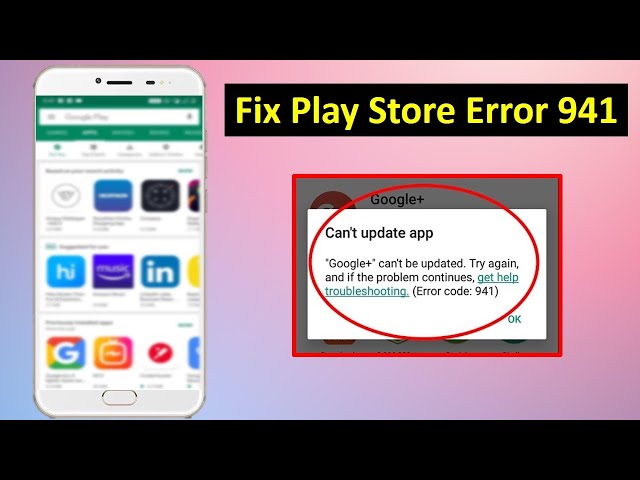
Google Play Store Error Code 941 occurs when the Android Package Manager (pm) and Download Manager (com.android.providers.downloads) encounter an unhandled interruption during the delta-patch decompression or checksum validation phase of an app update. When updating existing applications, Google Play downloads an archive containing only the code delta (changes) rather than the entire APK. Error 941 indicates that the local runtime environment failed to integrate this delta file into the existing installation directory (/data/app/), typically caused by corrupted application cache streams, residual temporary download fragments, active VPN/proxy socket drops, or aggressive system battery optimization features killing the installer process prematurely.
Method 1: Basic System Reset, Service Optimization, and Cache Flush
The initial phase of resolving Error 941 requires halting active package installer processes and flushing non-persistent cache partitions across all core Google framework services.
Step 1: Execute a Forced Cache and Data Flush on Google Play Store
Corrupted cached byte streams inside the Play Store repository daemon prevent the client from verifying download integrity.
-
Navigate to Settings > Apps > See all apps.
-
Scroll down and select Google Play Store.
-
Tap Force Stop, then select OK on the confirmation prompt.
-
Select Storage & cache, then tap Clear Cache.
-
Tap Clear storage (or Clear Data), and confirm by selecting Delete.
Step 2: Clear Application State for Google Play Services and Download Manager
Google Play Services manages authentication and API tokens, while the native Download Manager handles background file acquisition. Clearing their runtime states removes corrupt socket headers.
-
Navigate to Settings > Apps > See all apps.
-
Tap the three dots icon in the top-right corner and select Show system.
-
Locate and select Google Play Services.
-
Tap Storage & cache, select Clear Cache, then tap Manage space and select Clear All Data.
-
Return to the system apps list and select Download Manager (or Downloads).
-
Tap Force Stop, select Storage & cache, and tap Clear Cache, followed by Clear storage.
Step 3: Unmount and Remount External SD Card Storage
If your device uses an external micro SD card configured as portable storage, Android may attempt to stage temporary update files on a fragmented sector.
-
Go to Settings > Storage.
-
Locate your SD card under Portable storage and tap the eject icon, or tap the three dots next to it and select Unmount.
-
Wait 10 seconds for the file system to dismount cleanly.
-
Tap the SD card again and select Mount.
-
Attempt the app update through the Google Play Store to verify if localized write permissions were restored.
Method 2: Advanced System Repair, Storage Defragmentation, and Account Re-Authentication
When clearing service caches fails to eliminate Error 941, the underlying cause is typically an invalid OAuth2 token handshake between your Google account and the Play Store servers, or an insufficient continuous storage allocation block.
Step 1: Re-authenticate the Primary Google Account
An expired security token can cause Google’s content delivery servers to reject the final payload verification request, throwing Error 941.
-
Open Settings > Passwords & accounts (or Accounts & sync).
-
Tap the primary Google account associated with the Play Store.
-
Tap Remove account and confirm the prompt.
-
Restart your Android device to clear account-level system daemons from RAM.
-
Upon reboot, return to Settings > Passwords & accounts, select Add account, tap Google, and complete the login procedure with your credentials.
Step 2: Configure System Battery Saver and Background Execution Policies
Aggressive Android memory managers can kill the package installer mid-expansion if background execution limits are strictly enforced on system daemons.
-
Navigate to Settings > Apps > See all apps > Google Play Store.
-
Scroll down and select App battery usage (or Battery).
-
Switch the active selection from “Optimized” or “Restricted” directly to Unrestricted.
-
Repeat this process for Google Play Services and Download Manager.
-
Go to Settings > Battery and ensure that Battery Saver is toggled to Off during large application updates.
Step 3: Execute Package Manager Shell Commands via ADB
If a desktop computer is available, you can reset the Android Package Manager cache, force compile system libraries, and clear broken installation locks using the Android Debug Bridge (ADB).
Connect your phone to your computer with USB debugging enabled in Developer options. Open a command prompt or terminal window and check connection status:
adb devices
Once your device is recognized, execute the following shell commands sequentially to force clear the package installer queues, re-index system permissions, and force optimization:
adb shell pm trim-caches 1000M
adb shell cmd package bg-dexopt-job
adb shell am force-stop com.android.vending
adb shell pm clear com.android.vending
Disconnect your device from the computer and attempt the app update again.
Method 3: Deep System Reconfiguration, Network Stack Clearing, and Firmware Integration
Persistent Error 941 failures that survive application resets indicate deeper issues within the system network socket configuration, DNS routing failures, or broken Google Play Store system updates.
Step 1: Uninstall Google Play Store System Updates
A bug in a recently pushed version of the Play Store app itself can corrupt the update installer logic. Reverting the store to its factory base version resolves client-side code regressions.
-
Go to Settings > Apps > See all apps > Google Play Store.
-
Tap the three dots icon in the top-right corner.
-
Select Uninstall updates and tap OK when prompted to restore the app to factory settings.
-
Open the Google Play Store app. It will automatically update itself to the latest stable version in the background within a few minutes.
Step 2: Flush System Network Sockets and DNS Cache
Network latency or stale IPv6 socket entries can corrupt the HTTP byte-range requests used by the Download Manager during patch extraction.
-
Open Settings > System > Reset options.
-
Tap Reset Wi-Fi, mobile & Bluetooth (or Reset network settings).
-
Confirm by tapping Reset settings and authenticate using your device PIN or pattern.
-
If connected to Wi-Fi, open Settings > Network & internet > Wi-Fi, select your connected network, and tap the edit icon (or Network details).
-
Expand Advanced options, switch IP settings from “DHCP” to Static, and set DNS 1 to
8.8.8.8and DNS 2 to8.8.4.4(Google Public DNS). -
Save the network configuration, toggle Flight Mode on for 5 seconds, toggle it off, and retry updating the application.
Following these steps will clear residual package locks, re-establish valid server-side handshakes, and allow Google Play Store app updates to complete without encountering Error 941.