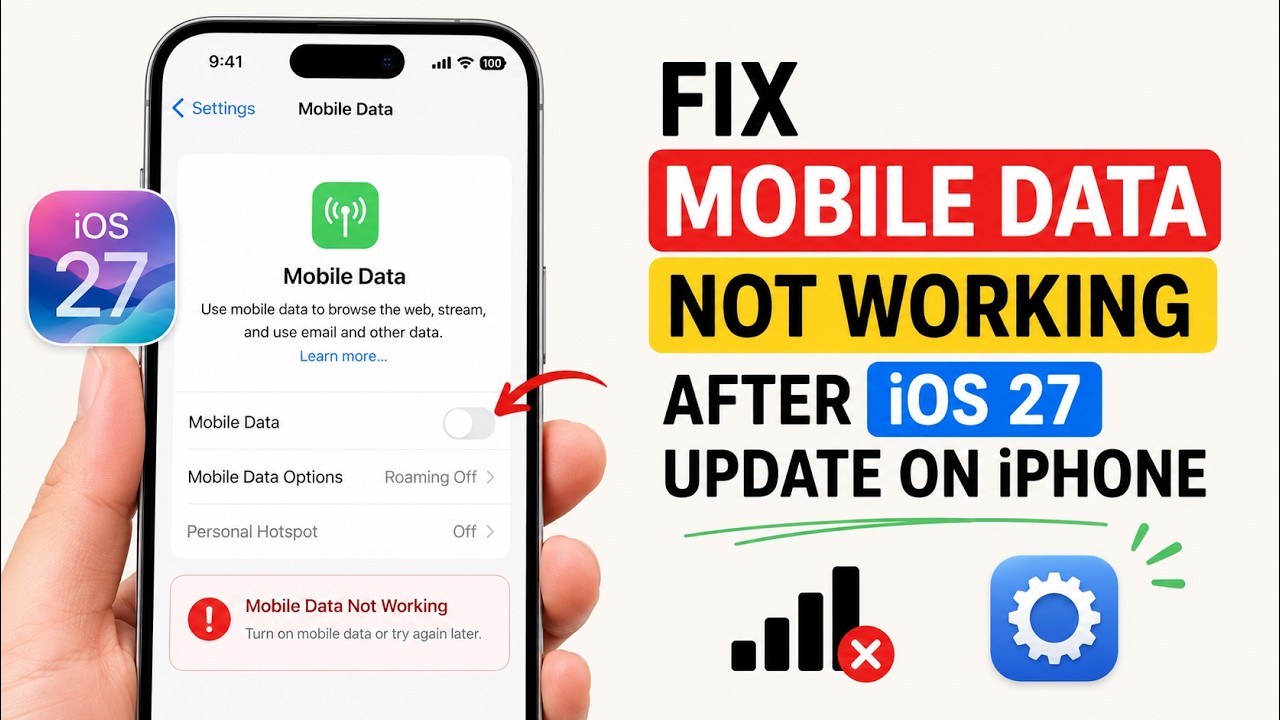
Cellular data connectivity failures following an iOS update occur when the iOS installer sequence fails to properly migrate carrier provisioning profiles, leaving the Baseband Processor (commcenter daemon) in a mismatched state with the cellular tower’s Gateway GPRS Support Node (GGSN) or User Plane Function (UPF). This update glitch prevents the iPhone from establishing a valid PDP (Packet Data Protocol) context, causing active cellular indicators (5G, LTE, or 4G) to drop data throughput or display a persistent “No Service” alert. Primary root causes include corrupted Carrier Settings bundles, obsolete APN payload overrides, VPN interface socket locks, or outdated baseband firmware files that failed to write cleanly during the software update process.
Method 1: Basic Radio Stack Cycle, Carrier Settings Refresh, and Physical SIM Reseat
The initial phase of resolving cellular data failures after an iOS update involves restarting baseband radios, forcing a carrier bundle handshaking request, and resetting physical SIM card registration pins.
Step 1: Force a Baseband Radio Reset via Airplane Mode
Cycling the cellular modem forces the iOS CommCenter background service to tear down existing broken network sockets and re-request a fresh IP address allocation from the carrier tower.
-
Swipe down from the top-right corner of the screen (or swipe up from the bottom on iPhone models with a Home button) to open Control Center.
-
Tap the Airplane Mode icon (airplane silhouette) to turn it on.
-
Wait at least 15 seconds to allow the baseband radio and internal power management ICs to shut down completely.
-
Tap the Airplane Mode icon again to disable it and wait for your carrier name and signal bars to populate in the status bar.
Step 2: Check for and Force a Carrier Settings Bundle Update
Carriers frequently issue updated network configuration payloads alongside major iOS releases to ensure proper spectrum compatibility and VoLTE/5G band switching.
-
Connect your iPhone to a stable Wi-Fi network.
-
Navigate to Settings > General > About.
-
Stay on this screen for 15 to 30 seconds. If a carrier update is pending, a prompt titled Carrier Settings Update will appear.
-
Tap Update to install the latest cellular routing configuration automatically.
Step 3: Reseat the Physical SIM or Re-provision the eSIM Profile
Dust accumulation, pin oxidation, or a soft-lock in the SIM toolkit state following an update can prevent physical or virtual SIM cards from negotiating data tokens.
For Physical SIM cards: Use a SIM ejector tool or paperclip to eject the SIM tray. Inspect the gold contact pins on the SIM card for smudges or oxidation, wipe it gently with a dry microfiber cloth, re-insert the tray firmly, and restart the iPhone.
For eSIM configurations: Open Settings > Cellular (or Mobile Service). Tap your active eSIM profile under SIMs, toggle Turn On This Line off, wait 10 seconds, and toggle it back on.
Method 2: Advanced Cellular Data Path Configuration, APN Reset, and VPN Removal
When basic radio cycles fail, the issue typically resides in misconfigured Access Point Name (APN) routing tables, residual beta profiles, or broken network socket interfaces left behind by VPN software.
Step 1: Reset Access Point Name (APN) and Cellular Data Preferences
iOS updates can sometimes wipe or corrupt custom APN profiles required by Virtual Network Operators (MVNOs) like Mint Mobile, Cricket, or Boost Mobile.
-
Open Settings > Cellular (or Mobile Service).
-
Select Cellular Data Network (if this option is visible; some major carriers lock this menu).
-
Scroll to the bottom of the screen and tap Reset Settings.
-
Tap Reset on the confirmation prompt.
-
If using an MVNO carrier that requires manual APN entry, re-type the exact APN credentials provided by your carrier under the Cellular Data section.
Step 2: Delete Obsolete VPN Profiles and Security Overlays
Virtual Private Network (VPN) apps install custom network tunnel extensions (NEVPNManager). Major iOS updates often break these extensions, causing them to block all non-tunnel traffic.
-
Navigate to Settings > General > VPN & Device Management.
-
Tap VPN under the VPN heading.
-
Tap the Info button (letter “i” inside a circle) next to any installed VPN configuration.
-
Tap Delete VPN and confirm by selecting Delete.
-
Return to VPN & Device Management and inspect the Configuration Profile section. If an old iOS Beta Software Profile or custom security profile is listed, tap it and select Remove Profile.
Step 3: Configure Preferred Voice & Data Settings (Toggle 5G/LTE)
Mismatches between local cell tower spectrum upgrades and iPhone 5G standalone (SA) settings can stall data transmission.
-
Go to Settings > Cellular > Cellular Data Options (or Mobile Data Options).
-
Tap Voice & Data.
-
Switch the selection from “5G On” or “5G Auto” down to LTE.
-
Navigate back to Cellular Data Options, select Data Mode, and set it to Standard (instead of “Allow More Data on 5G”).
-
Test your cellular data connection. If browsing functions normally on LTE, toggle back to 5G Auto to re-index the tower connection.
Method 3: Deep System Reconfiguration, Network Stack Clearing, and Baseband Firmware Reinstall
Persistent cellular failures that survive profile deletions indicate deeper corruption within the iOS networking stack, invalid socket routing tables, or an incomplete baseband firmware flash.
Step 1: Execute a Full Network Settings Reset
Resetting network settings clears all saved Wi-Fi networks, Bluetooth pairings, custom APN entries, and cellular routing caches, forcing iOS to rebuild its network stack from scratch.
-
Open Settings > General > Transfer or Reset iPhone.
-
Tap Reset at the bottom of the screen.
-
Select Reset Network Settings.
-
Enter your device passcode when prompted.
-
Tap Reset Network Settings on the red pop-up menu to confirm. The iPhone will shut down and reboot with a progress bar.
Step 2: Force a Hard System Restart
A hard restart cuts power to the iPhone’s RAM and reinitializes the low-level baseband controller without affecting personal data.
For iPhone 8, iPhone SE (2nd/3rd gen), iPhone X, 11, 12, 13, 14, 15, and 16 series:
-
Press and quickly release the Volume Up button.
-
Press and quickly release the Volume Down button.
-
Press and hold the Side button (Power button).
-
Continue holding the Side button even when “Slide to power off” appears. Release the button only when the Apple logo appears on screen.
Step 3: Reinstall iOS Baseband Firmware via Computer Recovery Mode
If cellular data remains non-functional, the baseband firmware update likely failed to write cleanly during the over-the-air (OTA) installation. Reinstalling the full iOS operating system via a computer fixes corrupt system binaries without erasing user files.
-
Connect your iPhone to a Mac (using Finder in macOS Catalina or later) or a Windows PC (using Apple Devices app or iTunes) via an official USB cable.
-
Put the iPhone into Recovery Mode:
-
Press and release Volume Up, press and release Volume Down, then press and hold the Side button. Keep holding the Side button even after the Apple logo appears until the “Connect to Computer” screen displays.
-
-
On your computer, a prompt will appear stating: “There is a problem with the iPhone that requires it to be updated or restored.”
-
Click Update (do NOT click Restore, as Restore will erase your data).
-
The computer will download a fresh copy of the latest stable iOS build and reinstall baseband system binaries. Allow the process to complete fully before disconnecting the cable.
Executing these technical procedures restores proper baseband handshakes, eliminates corrupted network socket overlays, and resolves post-update cellular data failures on iPhones.