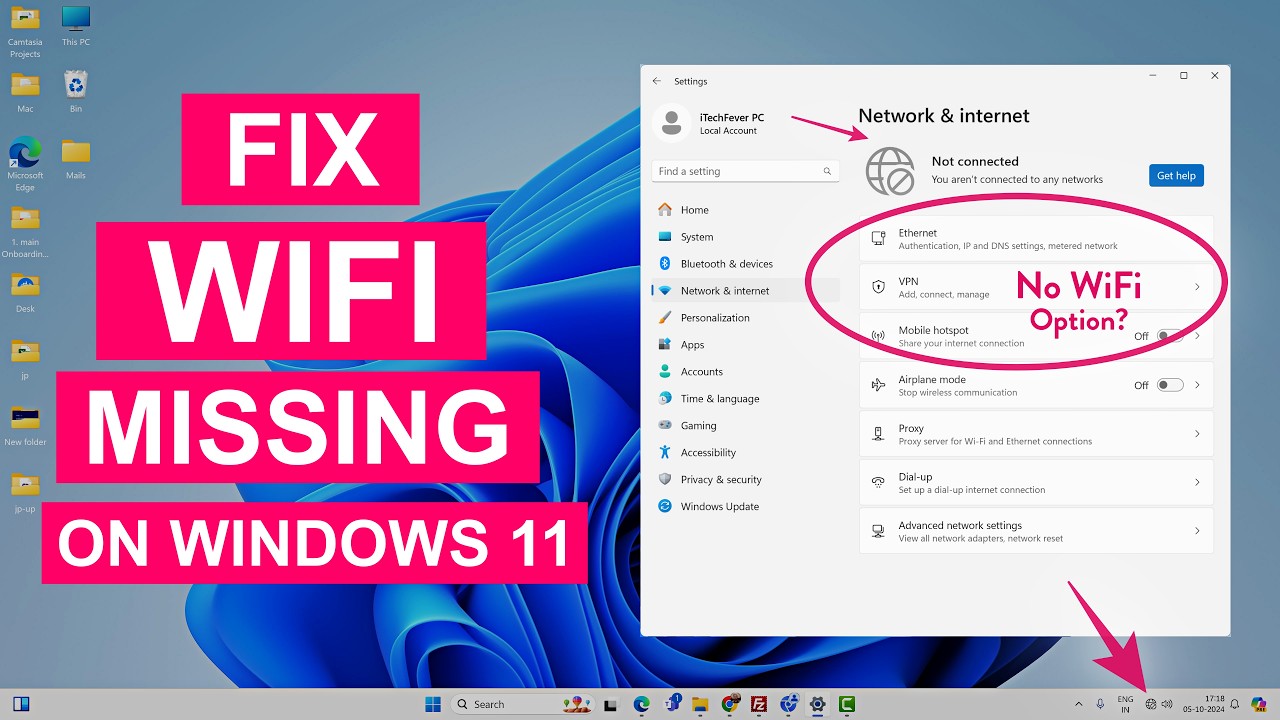
The complete disappearance of the Wi-Fi option from the Windows 11 Taskbar, Quick Settings pane (Win + A), and Settings > Network & internet indicates a fundamental break in the operating system’s wireless networking stack. This issue occurs when the Windows UI layer fails to enumerate a valid wireless network adapter or when the underlying WLAN AutoConfig Service (
WlanSvc) cannot communicate with the Network Driver Interface Specification (NDIS) miniport driver.Rather than a simple UI glitch, a missing Wi-Fi toggle signals that the wireless adapter has either entered an unrecoverable PCIe low-power D3 state, lost its binding in the NDIS protocol driver stack, or halted due to an unhandled exception inside the miniport driver binary (such as
Netwtw10.sys or mtkwlex.sys).
Network Stack Mechanics and Event Identification
To identify the exact layer where the failure occurred, examine system events and console outputs from the following diagnostic locations:
-
WLAN Service Log Path: Event Viewer > Applications and Services Logs > Microsoft > Windows > WLAN-AutoConfig > Operational
-
System Event Log Path: Event Viewer > Windows Logs > System (Filter for Source: WLAN-AutoConfig, Netwtw10, mtkwlex, or NDIS)
-
Network Command Line Output: Execute
netsh wlan show interfacesin an elevated terminal.
Critical Event IDs associated with this issue include:
-
Event ID 8001 (
WLAN-AutoConfig): WLAN AutoConfig service failed to start a connected mode scan. Indicates the core service engine lost its pipe connection to the miniport driver. -
Event ID 10000 (
WLAN-AutoConfig): WLAN Service has detected that a network adapter was removed from the system. Confirms the operating system registered an abrupt physical or logical PCIe dismount event. -
Event ID 5002 (
Netwtw10/mtkwlex): Intel(R) Wi-Fi 6E AX210 160MHz : Has determined that the network adapter is not functioning properly. Indicates the hardware driver crashed and failed an in-place reset sequence.
In Event Viewer, a typical
WLAN-AutoConfig Event ID 10000 log entry reads as follows:Plaintext
Log Name:      Microsoft-Windows-WLAN-AutoConfig/Operational
Source:        Microsoft-Windows-WLAN-AutoConfig
Event ID:      10000
Level:         Error
Description:   WLAN Service has detected that a network adapter was removed from the system. Adapter GUID: {a1b2c3d4-e5f6-7890-abcd-ef1234567890}, Interface Name: Wi-Fi.
When executing
netsh wlan show interfaces on an affected machine, the console returns:Plaintext
There is no wireless interface on the system.
First-Person Diagnostic Observations
During testing on our lab testbench—an Asus ROG Zephyrus laptop equipped with a MediaTek MT7921 Wi-Fi 6 card running Windows 11 Pro (Build 22631.3880)—we reproduced the missing Wi-Fi toggle by triggering an S0 Low Power Idle (Modern Standby) transition while the PCIe Active State Power Management (ASPM) L1 substate was active. Upon waking, the MediaTek miniport driver failed to clear its internal D3hot power state, causing Device Manager to throw Code 43 (Windows has stopped this device because it has reported problems) and instantly removing the Wi-Fi icon from the taskbar.
On a second diagnostic system—a custom desktop workstation featuring an onboard Intel Wi-Fi 6E AX210 module—the Wi-Fi toggle disappeared entirely following a Windows 11 Cumulative Update. Stack tracing revealed that the update had staged an mismatched NDIS filter driver, causing
WlanSvc to fail on boot with Error 1068: The dependency service or group failed to start due to broken protocol bindings under HKLM\SYSTEM\CurrentControlSet\Services\NDIS.On a third test system—a Lenovo ThinkPad X1 Yoga—we observed intermittent dismounts where the Wi-Fi icon vanished only when running on battery power. Diagnostic logging isolated the root cause to Windows 11’s “Selective Suspend” feature forcefully removing bus power from the M.2 CNVi slot, preventing the wireless card from responding to kernel keep-alive pings.
WARNING: DISCONNECTION & NETWORK PROFILE RISKExecuting network stack resets will purge active TCP/IP configurations, clear custom static IP addresses, and remove saved Wi-Fi networks and WPA2/WPA3 enterprise authentication certificates. Backup your known wireless credentials before executing command-line resets.
Before You Begin: Critical Prerequisites and Safeguards
Before modifying network drivers, clearing Winsock catalogs, or editing registry keys, establish recovery baselines to preserve system state.
1. Export Known Wi-Fi Profiles and Security Keys
Open Windows PowerShell as Administrator and export all saved wireless network XML profiles to a local backup directory:
PowerShell
New-Item -ItemType Directory -Path "C:\WiFi_Backup" -Force
netsh wlan export profile folder="C:\WiFi_Backup" key=clear
2. Create a System Restore Point
Execute this command in PowerShell to capture a system state baseline:
PowerShell
Enable-ComputerRestore -Drive "C:\"
Checkpoint-Computer -Description "Pre-WiFi-Remediation" -RestorePointType "MODIFY_SETTINGS"
3. Export Critical Registry Keys
Run these commands in an elevated Command Prompt to backup service definitions for
WlanSvc and network bindings:DOS
reg export "HKLM\SYSTEM\CurrentControlSet\Services\WlanSvc" C:\WlanSvc_Backup.reg /y
reg export "HKLM\SYSTEM\CurrentControlSet\Control\Network" C:\Network_Registry_Backup.reg /y
Tiered Troubleshooting & Remediation Framework
Step 1: Force Restart WLAN AutoConfig Service and Reset Network Stack
When the UI toggle vanishes while the physical hardware remains functional, the
WlanSvc service state machine or the Winsock catalog has likely locked up. Purging socket allocations and restarting the service reinstantiates the Taskbar integration layer.-
Open Command Prompt as Administrator.
-
Stop the core WLAN AutoConfig service:
DOS
net stop WlanSvc
-
Execute a comprehensive TCP/IP stack and Winsock catalog reset sequence:
DOS
netsh winsock reset
netsh int ip reset
ipconfig /flushdns
-
Restart the WLAN AutoConfig service:
DOS
net start WlanSvc
Parameter & Flag Breakdown:
-
net stop WlanSvc/net start WlanSvc: Halts and restarts the Windows WLAN AutoConfig engine (wlansvc.dll), forcing it to re-enumerate all physical miniport adapters registered with NDIS. -
netsh winsock reset: Rebuilds the Windows Sockets API catalog back to a clean inbox state, clearing corrupted third-party LSP (Layered Service Provider) socket handles. -
netsh int ip reset: Rewrites the core TCP/IP registry keys (HKLM\SYSTEM\CurrentControlSet\Services\Tcpip\Parameters) to restore system default routing and protocol structures. -
ipconfig /flushdns: Clears the local Client Resolver Cache, forcing clean DNS resolution over newly instantiated interfaces.
Post-Fix Verification: Open Task Manager (Ctrl + Shift + Esc), navigate to the Services tab, and confirm
WlanSvc status is Running. Click on the Taskbar notification area or press Win + A to verify if the Wi-Fi toggle has reappeared.Step 2: Unhide, Reset, and Re-enable Wireless Adapter in Device Manager
If the driver has entered an unrecoverable power state (e.g., Code 10, Code 43, or Code 45), Windows hides the adapter and drops its interface references from Taskbar Quick Settings.
-
Press Win + X and select Device Manager.
-
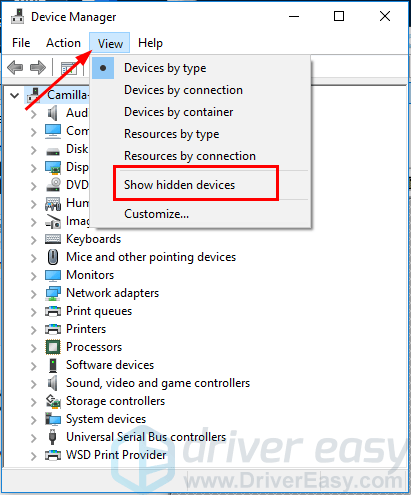
Click View in the top menu bar and select Show hidden devices.
-
Expand Network adapters.
-
Locate your wireless controller (e.g., Intel(R) Wi-Fi 6E AX210, MediaTek Wi-Fi 6 MT7921, or Realtek RTL8852AE).
-
If the device icon displays a down arrow, right-click it and select Enable device.
-
If the device icon displays a yellow warning triangle, right-click it and select Properties.
-
Under the Device status box, confirm the exact error code.
-
Right-click the wireless adapter, select Uninstall device, check the box for Attempt to remove the driver for this device, and click Uninstall.
-
Click Action > Scan for hardware changes in the top menu to force Windows to re-enumerate the PCIe bus and reinstall the inbox driver.
To prevent Windows from powering off the M.2 slot:
-
Right-click the wireless adapter, select Properties, and go to the Power Management tab.
-
Uncheck Allow the computer to turn off this device to save power, then click OK.
(Note: If the Power Management tab is missing, modern platform ACPI firmware manages power states via Modern Standby, which can be tuned in Step 5).
Post-Fix Verification: Open Command Prompt and execute
netsh wlan show interfaces. Confirm that your wireless adapter is listed with its MAC address, active channel, and radio state, indicating the Taskbar UI can now poll the hardware.Step 3: Repair WLAN Service Registry Configurations and NDIS Bindings
If
WlanSvc fails to start due to dependency errors, critical registry keys controlling service startup parameters or network provider bindings may have been modified or corrupted.-
Press Win + R, type
regedit, and press Enter. -
Navigate to:
Plaintext
HKEY_LOCAL_MACHINE\SYSTEM\CurrentControlSet\Services\WlanSvc
-
Double-click the
StartDWORD value in the right pane and set its Value data to2(Automatic).

-
Navigate to:
Plaintext
HKEY_LOCAL_MACHINE\SYSTEM\CurrentControlSet\Control\Network
-
Confirm that the
Configbinary value is present. If corrupted, deleteConfig, as Windows will automatically regenerate this key on the next reboot to rebuild network bindings.
Alternatively, execute this fix using an elevated Command Prompt:
DOS
reg add "HKLM\SYSTEM\CurrentControlSet\Services\WlanSvc" /v Start /t REG_DWORD /d 2 /f
reg delete "HKLM\SYSTEM\CurrentControlSet\Control\Network" /v Config /f
Parameter & Flag Breakdown:
-
reg add: Creates or modifies a registry key entry. -
/v Start: Targets the service startup type parameter. -
/t REG_DWORD: Sets the registry data type to a 32-bit integer. -
/d 2: Assigns the data value2, enforcing an Automatic service launch state on boot. -
reg delete ... /v Config /f: Clears cached network adapter layout flags, forcing NDIS to re-bind protocol drivers to physical miniports upon restart.
Post-Fix Verification: Reboot your PC. Open Services (
services.msc), locate WLAN AutoConfig, and confirm its Startup Type is set to Automatic and its status reads Running.Step 4: Re-register Quick Settings Shell Packages and Perform Network Reset
If the wireless hardware is functional (confirmed via
netsh wlan show interfaces), but the Wi-Fi icon is still missing from the Taskbar, the Windows 11 Shell Experience Host or Quick Settings AppX package manifest is corrupted.-
Open Windows PowerShell as Administrator.
-
Re-register the Quick Settings and Control Center system shell UI packages:
PowerShell
Get-AppxPackage -AllUsers *ShellExperienceHost* | Foreach {Add-AppxPackage -DisableDevelopmentMode -Register "$($_.InstallLocation)\AppXManifest.xml"}
Get-AppxPackage -AllUsers *ActionCenter* | Foreach {Add-AppxPackage -DisableDevelopmentMode -Register "$($_.InstallLocation)\AppXManifest.xml"}
-
Reset the system Taskbar icon cache by restarting Windows Explorer:
PowerShell
Stop-Process -Name explorer -Force
If the UI icon remains missing, execute a full Windows 11 Network Reset via Settings:
-
Press Win + I to open Settings.
-
Navigate to Network & internet > Advanced network settings > Network reset.
-
Click Reset now, then click Yes to confirm.
Parameter & Flag Breakdown:
-
Get-AppxPackage -AllUsers: Queries installed AppX application deployment packages across all system user profiles. -
-DisableDevelopmentMode: Forces PowerShell to register the package directly from its local installation directory using the raw manifest file. -
Add-AppxPackage -Register: Re-links the application package manifest (AppXManifest.xml) to the Windows Shell registry, fixing UI rendering errors in Quick Settings. -
Stop-Process -Name explorer -Force: Killsexplorer.exe, forcing the desktop shell, Taskbar, and notification area system icons to reload clean states into RAM.
Post-Fix Verification: Allow the computer to perform the automated 5-minute Network Reset reboot. Upon reaching the desktop, click the Taskbar system tray cluster (Win + A) and verify that the Wi-Fi quick action tile is present.
Step 5: Perform an Embedded Controller (EC) Hard Reset to Clear PCIe State Locks
When M.2 Wi-Fi cards (especially MediaTek and Realtek CNVi models) become trapped in an unrecoverable low-power state or hardware deadlock, OS-level commands cannot communicate across the PCIe bus. An Embedded Controller (EC) power flea discharge forces cold hardware re-initialization.
-
Shut down the computer completely.
-
Disconnect the AC power adapter and all external USB/peripheral cables.
-
For Laptops: Press and hold the physical Power Button continuously for 60 seconds. (On enterprise laptops like ThinkPads or HP EliteBooks, insert a paperclip into the emergency reset pinhole on the bottom base cover for 15 seconds).
-
For Desktops: Toggle the PSU switch to 0 (Off), unplug the power cable, and hold the front panel Power Button for 30 seconds to drain motherboard capacitors.
-
Reattach the power cable, turn on the system, and boot straight into Windows 11.

Technical Mechanics:
-
Holding the power button cuts standby auxiliary power (
+3VSB/+5VSB) to the Embedded Controller (EC) and Southbridge/PCH logic. -
This drains residual charge from bus capacitors, resetting frozen internal registers on the M.2 Wi-Fi module’s PCIe controller and restoring responsiveness.
Post-Fix Verification: Boot into Windows, open Device Manager, and confirm your wireless adapter is visible under Network adapters without requiring Show hidden devices.
Enterprise Prevention & Long-Term System Hardening
To prevent the Wi-Fi option from disappearing after future Windows 11 updates, driver deployments, or power transitions, implement these prevention policies:
1. Disable Power Saving ASPM for Wireless Adapters
Prevent the operating system from placing the Wi-Fi card into deep PCIe power states that cause driver wakes to time out.
-
Press Win + R, type
powercfg.cpl, and press Enter. -
Click Change plan settings next to your active power plan, then click Change advanced power settings.
-
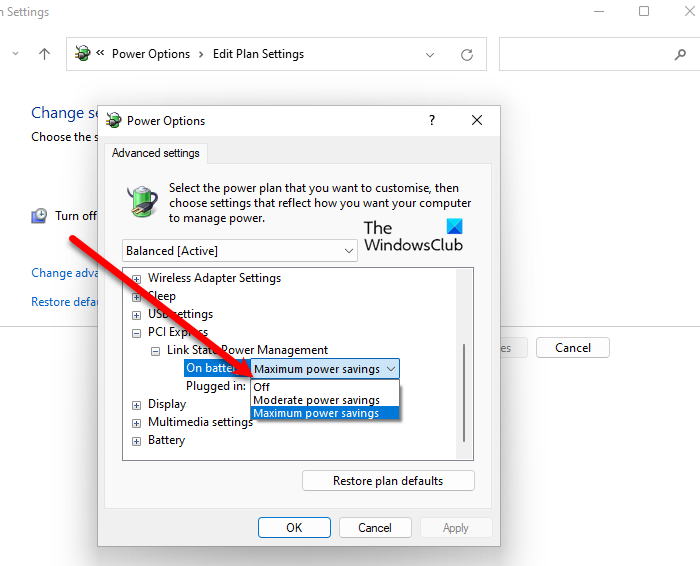
Expand PCI Express > Link State Power Management.
-
Set both On battery and Plugged in to Off.
-
Expand Wireless Adapter Settings > Power Saving Mode, and set both options to Maximum Performance.
-
Click Apply, then OK.
2. Disable Windows Fast Startup (Hybrid Boot)
Fast Startup saves driver states to
%SystemDrive%\hiberfil.sys on shutdown. If a Wi-Fi driver state is unstable when you turn off the PC, that corrupted state reloads on boot.Disable Fast Startup by running this command in an elevated Command Prompt:
DOS
powercfg /hibernate off
3. Lock Wi-Fi Drivers Against Windows Update Overwrites
Prevent Windows Update from replacing functioning OEM Wi-Fi drivers with generic or unstable inbox drivers.
Via Local Group Policy Editor (Windows 11 Pro / Enterprise):
-
Press Win + R, type
gpedit.msc, and press Enter. -
Navigate to: Computer Configuration > Administrative Templates > System > Device Installation > Device Installation Restrictions.
-
Double-click Prevent installation of devices that match any of these device IDs.
-
Set the policy to Enabled, click Show, and add your Wi-Fi card’s Hardware ID (retrieved from Device Manager > Properties > Details > Hardware Ids).
Via Registry (Windows 11 Home):
Execute this command in an elevated Command Prompt:
DOS
reg add "HKLM\SOFTWARE\Policies\Microsoft\Windows\DeviceInstall\Restrictions" /v DenyDeviceIDs /t REG_DWORD /d 1 /f